

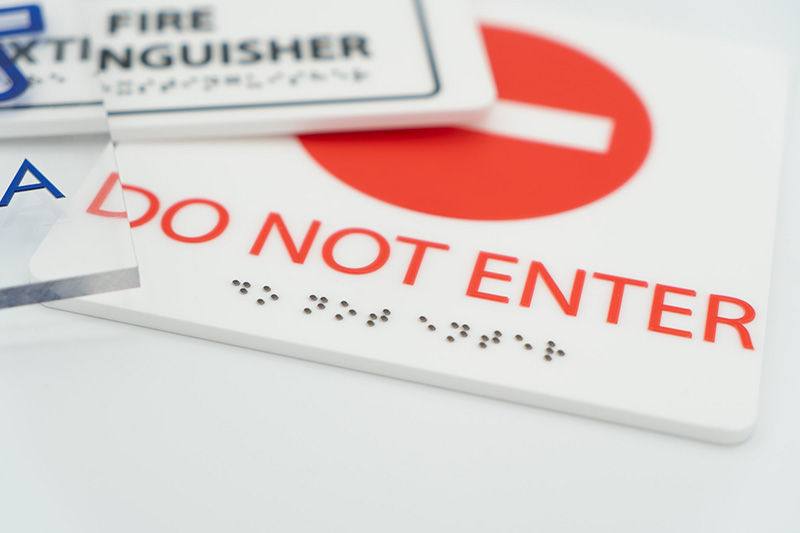
Did you know that Roland DG’s UV flatbed printers can print Braille? The ability to convert text into a format that can be read by touch helps make wayfinding and informational signage accessible to people who are visually impaired. We list the steps in the UV-printed Braille workflow along with a video guide below.
To find out more about this important application, we spoke with Roland DGA’s Product Manager for Specialty Devices, Philip Chu.
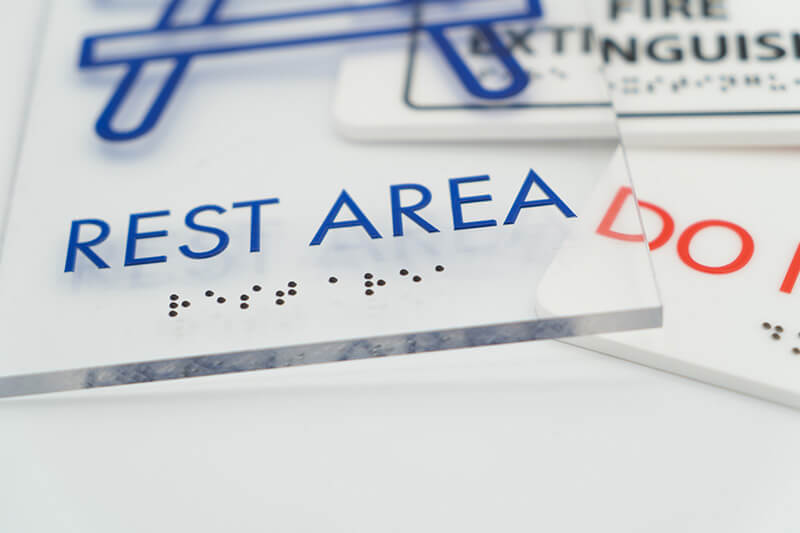
What are the different types of Braille signage?
Braille is needed for signage in public spaces to designate permanent rooms and spaces such as restrooms, exits, elevators, and room numbers. It can also be used for informational and directional signage.

Is all Braille the same?
There are several different grades of Braille:
Grade 1 – Uncontracted – letter-for-letter translation, used for most Braille signage.
Grade 2 – Contracted – uses contractions and shortened words which require translation software.
Grade 3 – Advanced – uses abbreviations and shortcuts for faster reading and documentation.
We recommend checking with state and local authorities about the standards in your area for Braille signage. Braille text size and spacing is regulated and consistent across applications.
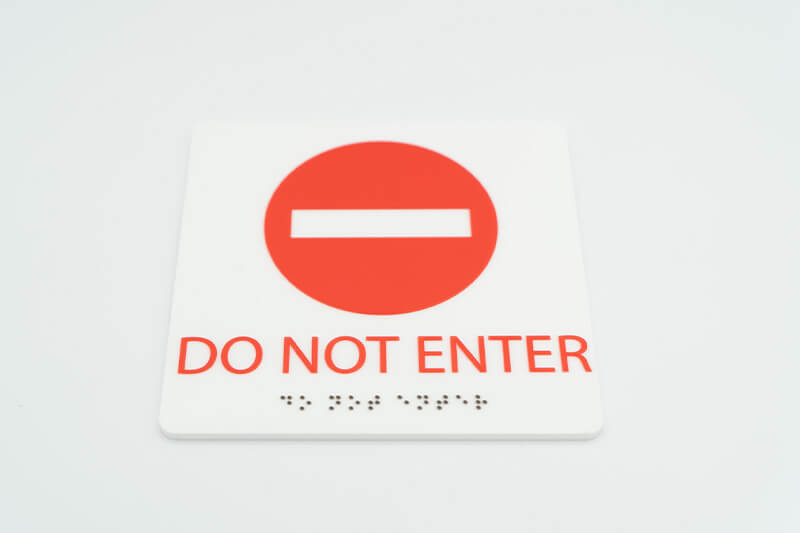
Are there some general rules when producing Braille?
Generally, Braille text needs to be raised 1/32” (0.025–0.038”) and domed/curved on the top.
While other printers can produce raised text, only Roland DG UV flatbed devices can round off the tops to create the domed surface required for Braille.
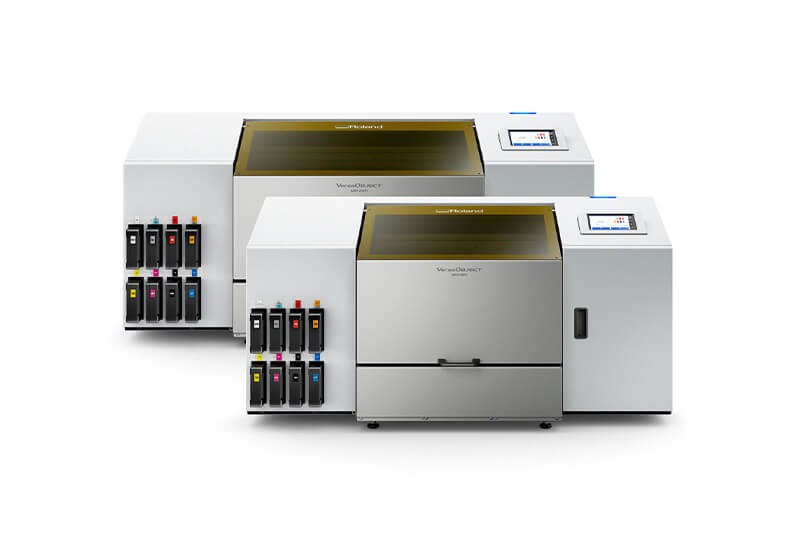
Which Roland DG devices can produce Braille?
Roland DG offers UV flatbed printers in several sizes capable of producing Braille:
- VersaOBJECT MO series benchtop UV flatbed printers
-
VersaOBJECT CO-i series wide-format UV flatbed printers
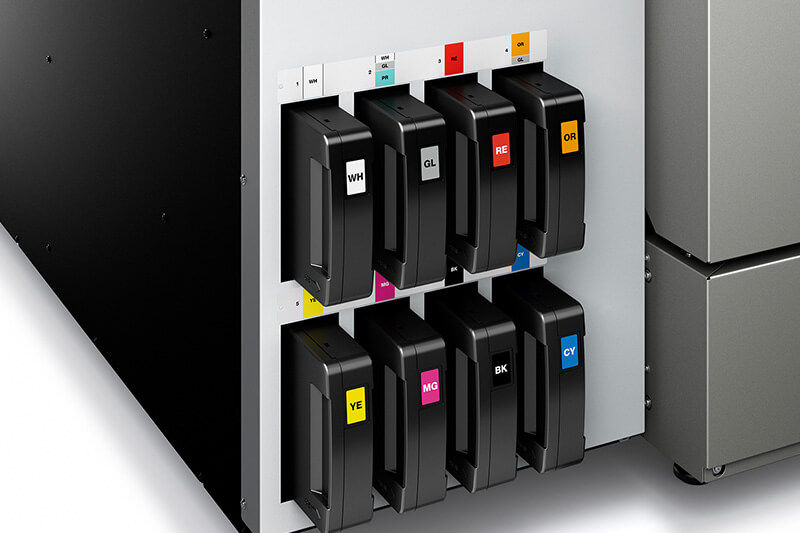
Using Roland DG’s VBOND ink is recommended for Braille applications. VBOND is a high-build ink ideal for flat substrates, offers excellent adhesion, is Calif Prop 65 certified, and achieves regulation-height Braille in 7–8 passes.
What are the steps in a Braille workflow?
Roland DGA has several guides and videos on setting up a Braille workflow. The process is fairly simple:
- Prepare your file in Adobe Illustrator
- Set the media height on your printer
- Load your files into VersaWorks
- Configure your print settings
- Print using Grouped Jobs
If you have questions about how to use your Roland DG UV printer to create Braille, check out our video library on Roland TV. To find a Roland dealer near you, click here.